IKEv2 on Windows
Follow this guide to set up IKEv2 VPN on your Windows device.
Setup Steps
1. Open VPN Settings
Press the Windows key, type VPN, and open the VPN Settings menu.
2. Add a New VPN Connection
Click on Add a VPN Connection.
3. Enter VPN Details
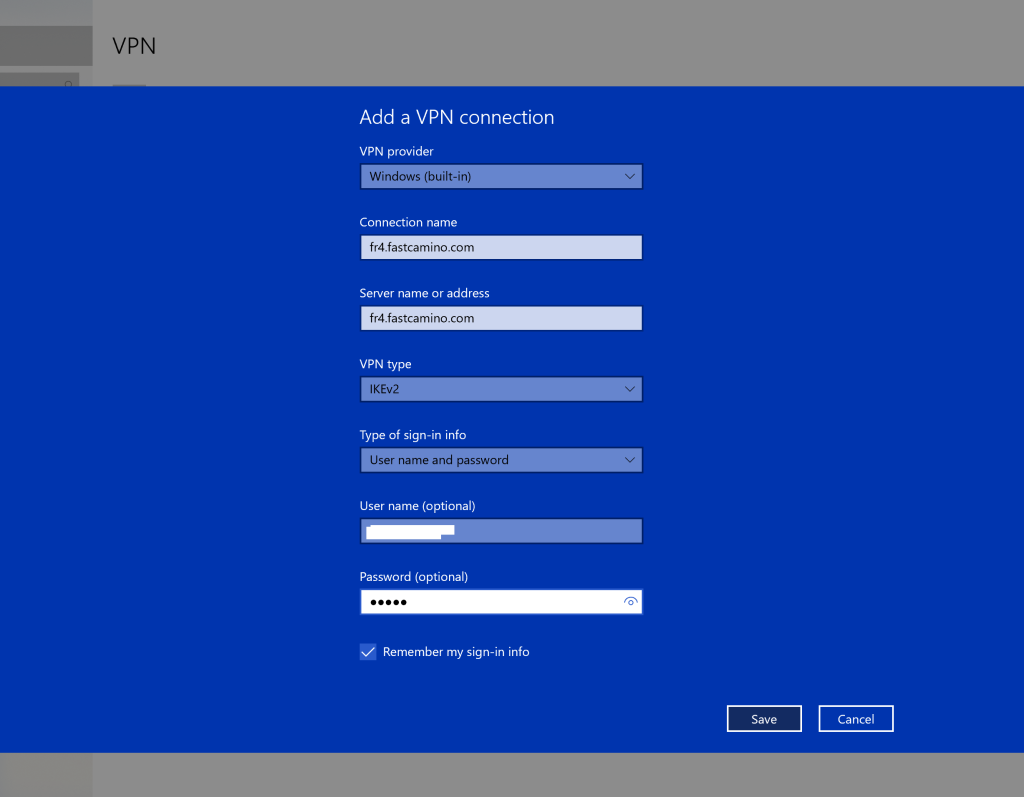
Configure the following settings:
- VPN Provider: Windows (built-in)
- Connection Name: us1.fastcamino.com (or any preferred server name)
- Server Name or Address: us1.fastcamino.com
- VPN Type: IKEv2
- Type of Sign-in Info: Username and Password
- Username: (your VPN account username)
- Password: (your VPN account password)
4. Save and Connect
Click Save once you've entered the details. Then, select your newly created VPN connection and click Connect.
tip
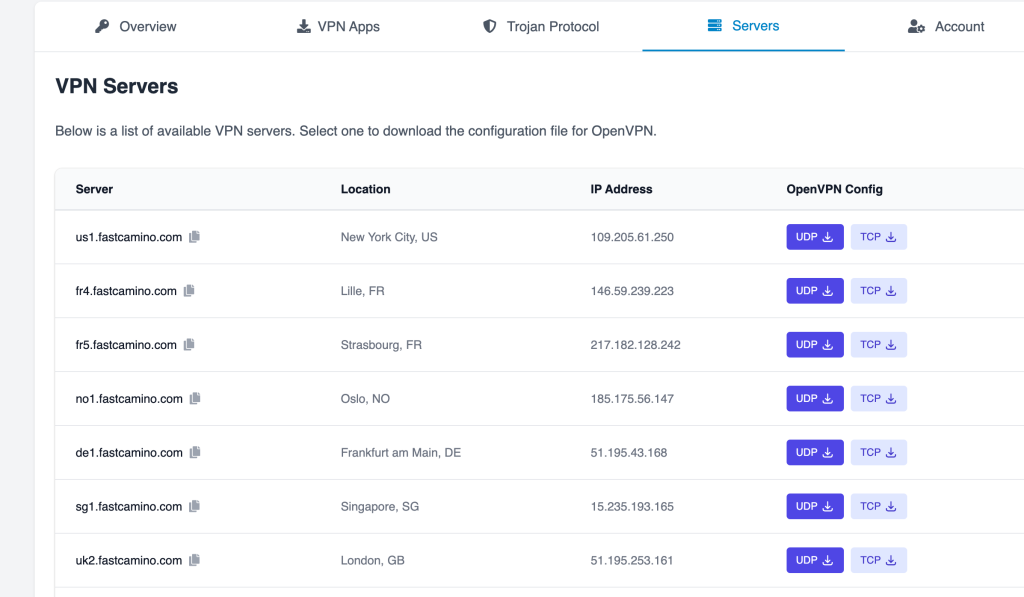
If you need to use a different server, visit the Servers Tab in your client area for a full list of available servers.