IKEv2 on MacOS
Follow these steps to configure IKEv2 VPN on your macOS system.
Setup Steps
1. Open System Settings
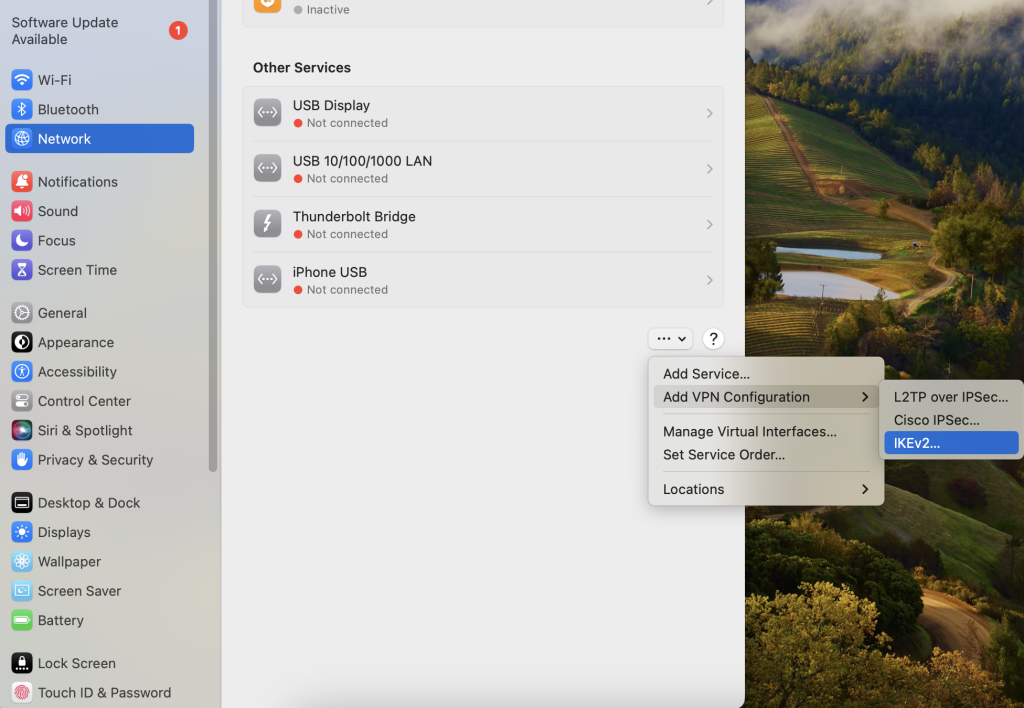
Go to Network.
2. Add VPN Configuration
Click the three dots (⋮) and select Add VPN Configuration. Choose IKEv2 as the VPN type.
3. Configure VPN Settings
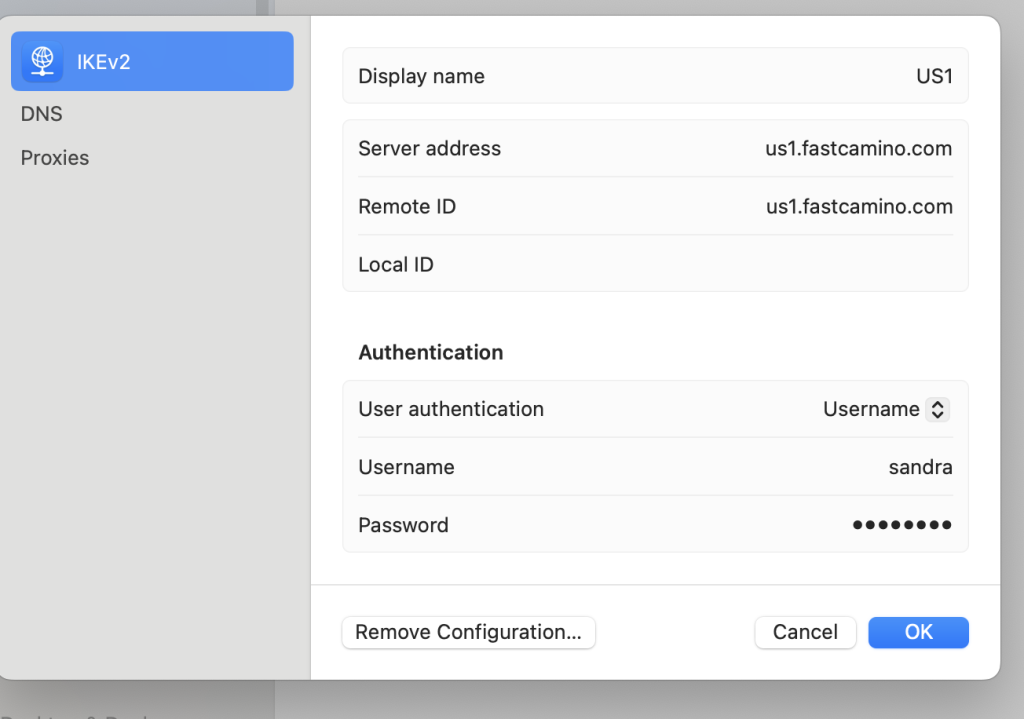
Enter the following details:
- Display Name: (Enter a name for your VPN connection)
- Server Address: us1.fastcamino.com (or any other server address)
- Remote ID: us1.fastcamino.com (must match the server address)
- Local ID: Leave this field blank
- User Authentication: Username
- Username/Password: Enter your VPN credentials
4. Complete Setup and Connect
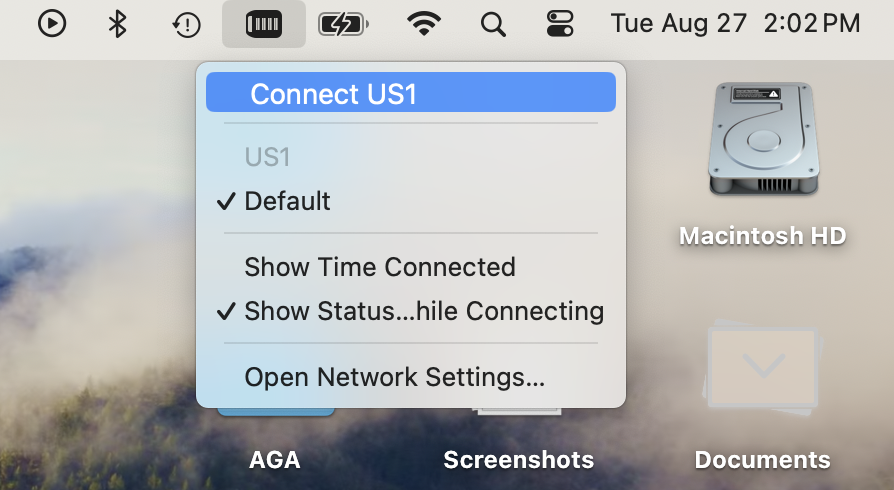
Once the configuration is complete, you can connect to the VPN server directly from the system menu bar.
tip
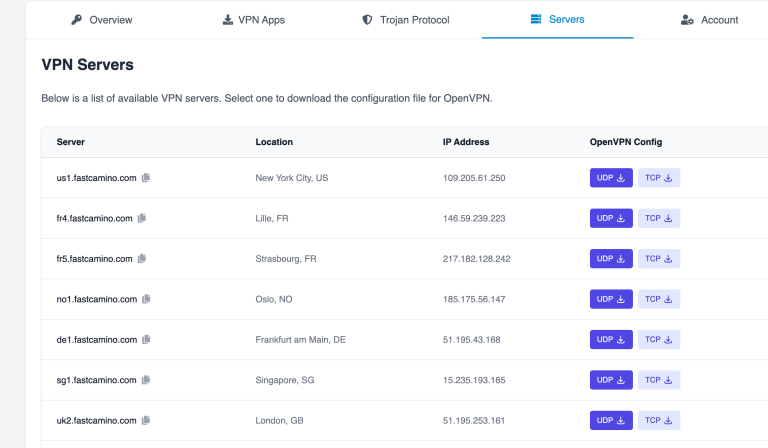
To explore other server locations, visit the Servers Tab in your client area. You can add multiple locations as needed!
You’re now ready to use your IKEv2 VPN connection on macOS!